Intro
In this guide we are going to show you how to quickly build your first Traditional Form Template. Inside of Joyfill Forms and PDFs are referred to as Documents and Templates so that is how we will refer to them both going forward.Before you continue with this guide please ensure that you’ve gone through the getting started steps.
Navigate to your Template Library
Once you’ve created a Joyfill Developer account you will now be able to start building out your Document Templates library. Document Templates are your saved forms and pdfs structures that you or your customers will use to populate with data, export to PDF, etc. Click “Add Template” to get started. This will navigate you to the template builder page.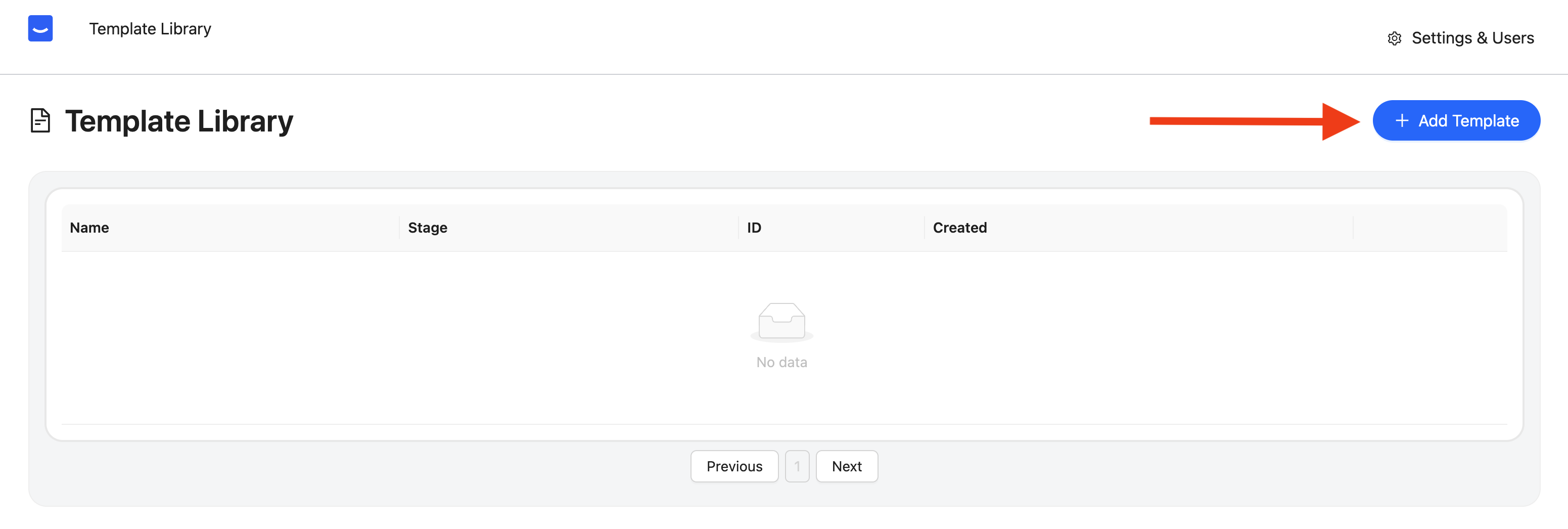
Build your first template
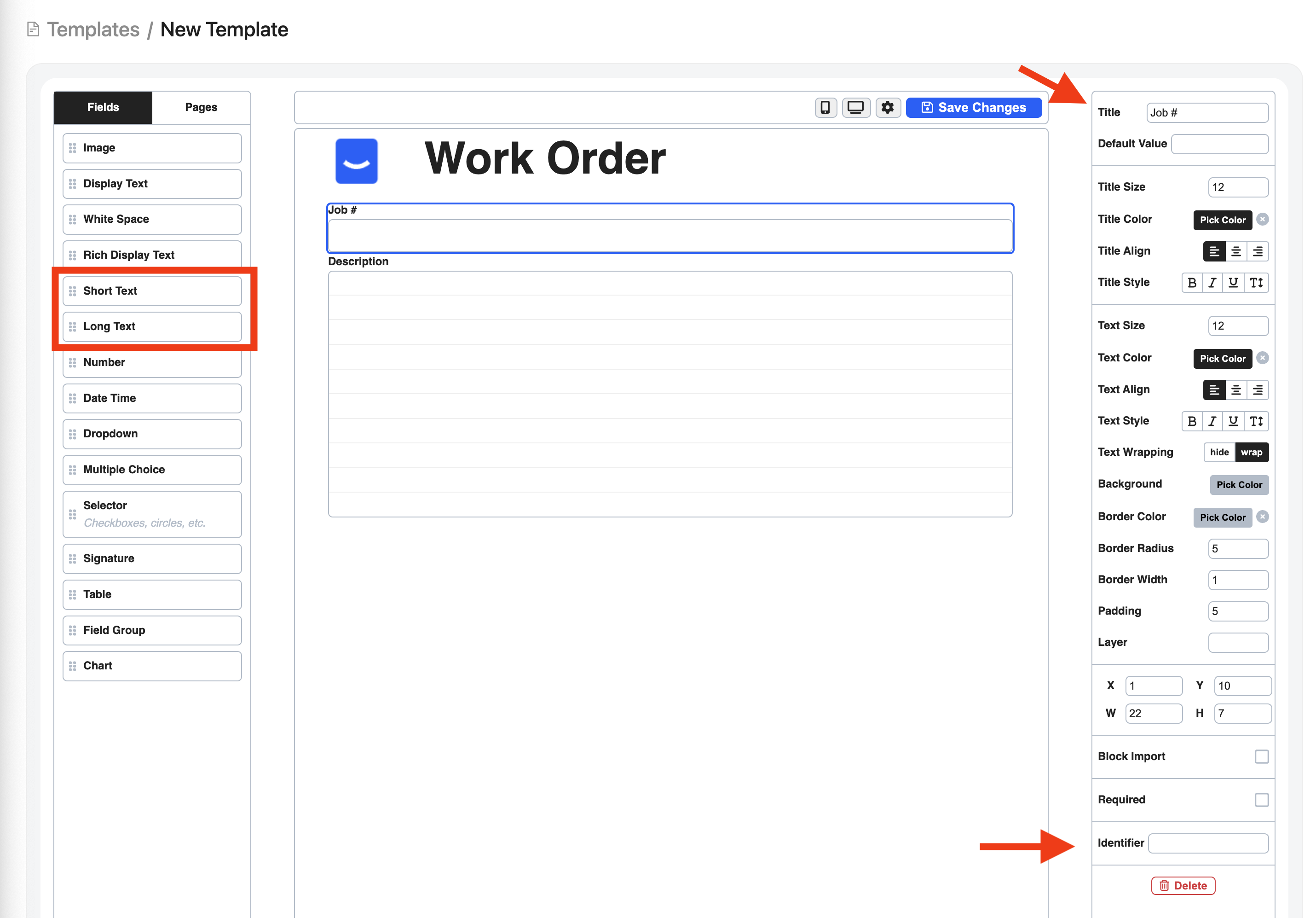
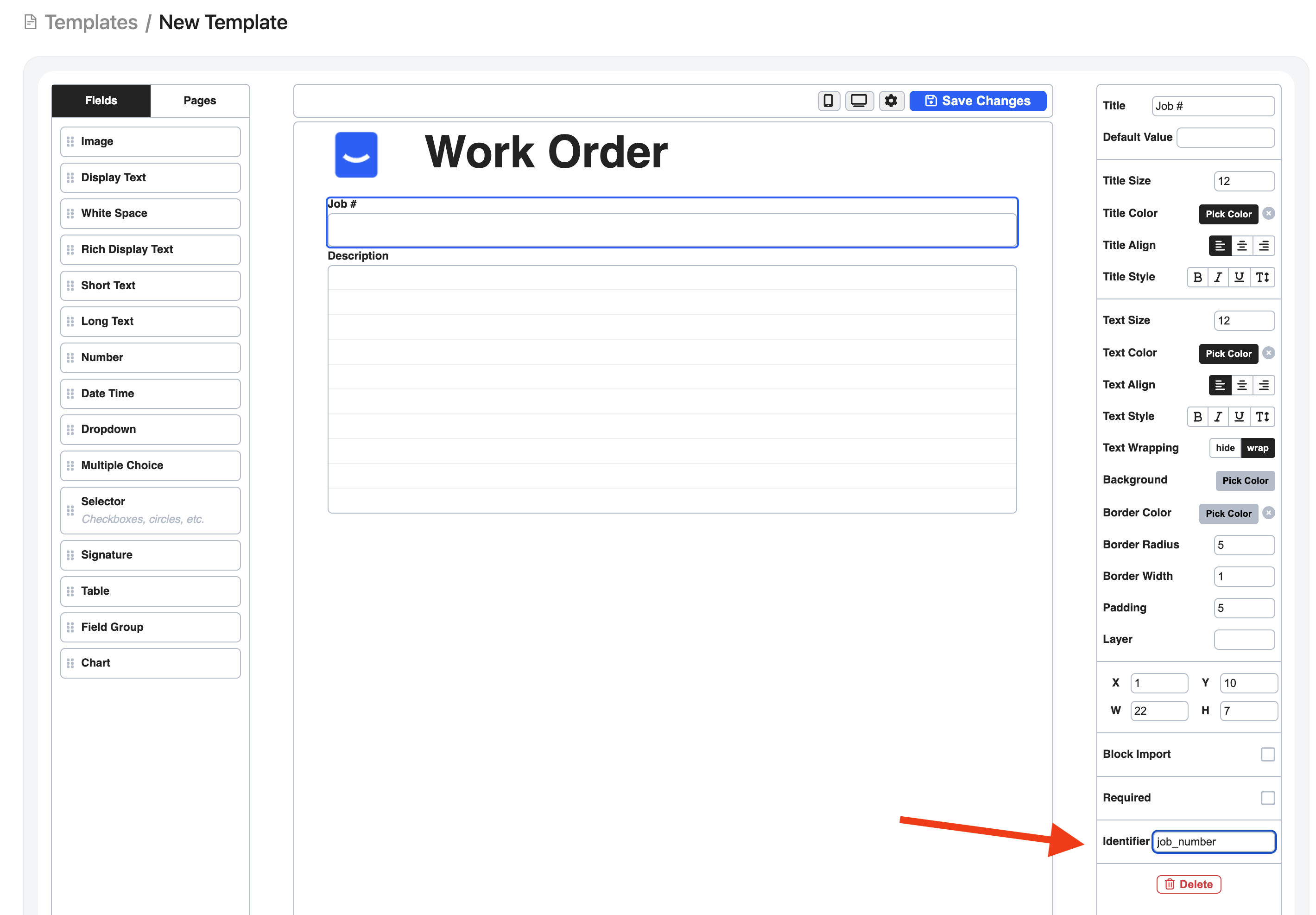
Now that you’re on the template builder page we are going to start off by building a simple Work Order template. Follow the steps below and feel free to add any styles or extra fields you want. Just make sure add the fields mentioned below along with the identifiers so that the rest of the guide makes sense. Step 1: Drag and Drop an Image Field onto your template. Ensure that the new image field is selected with a blue border around it. Now you can upload a test logo in the field settings located in the right panel.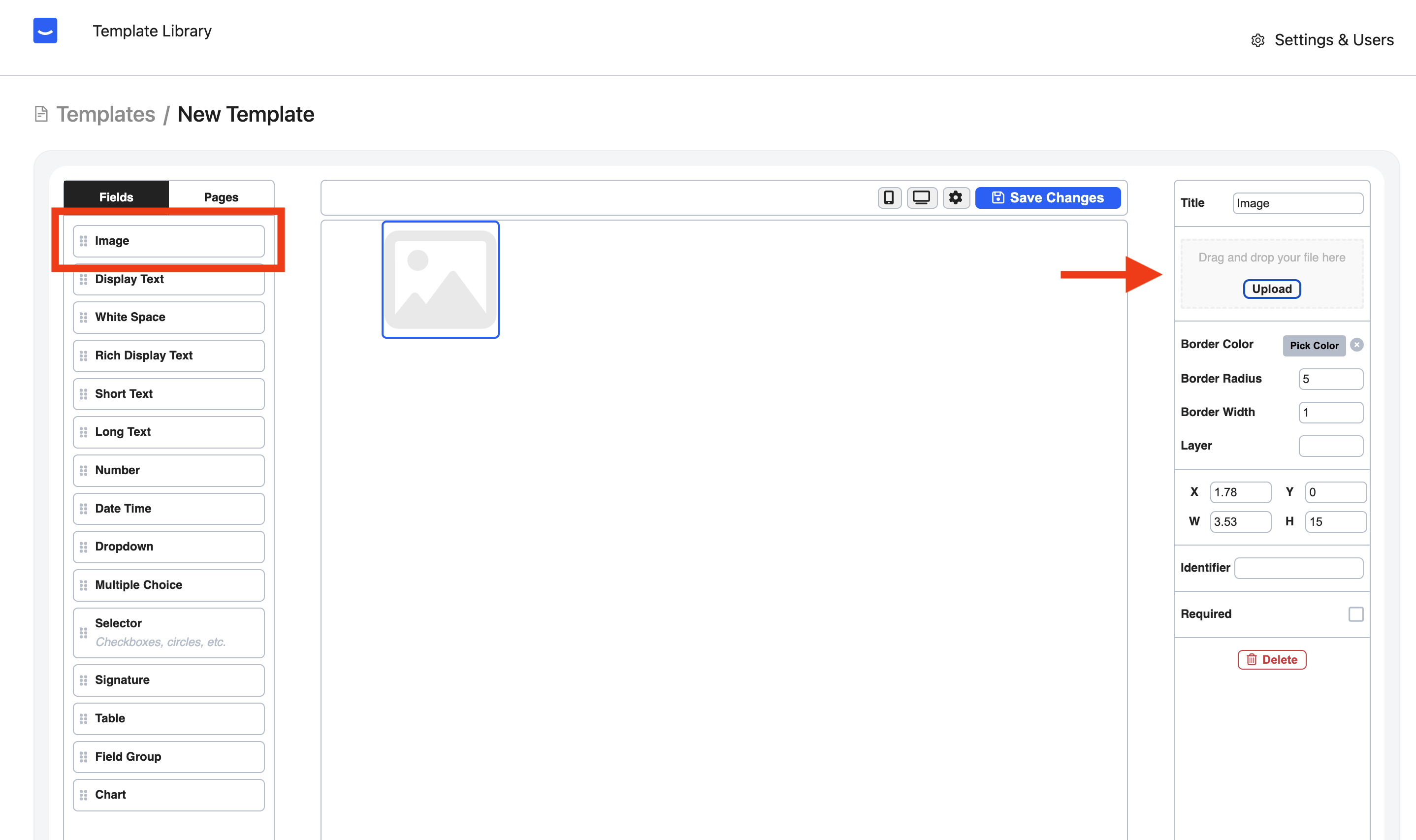
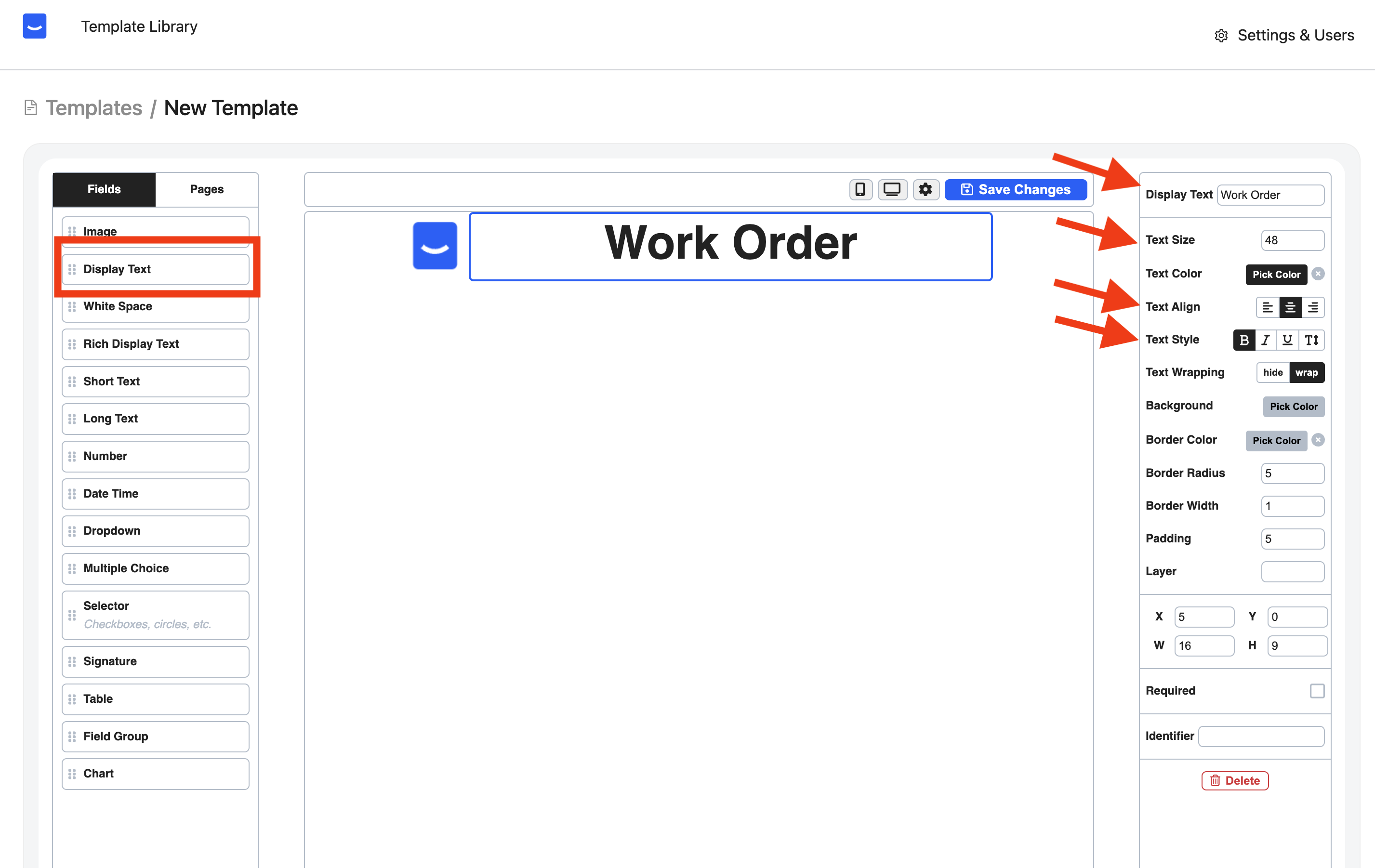
 Step 5: Save your changes!